
AI connector for Microsoft Word* · Word MCP server
Give your AI assistant
a pen in Word®
Connect Claude Code, Claude Desktop, Cowork, ChatGPT Work, ChatGPT Codex, and other MCP-enabled AI assistants to Microsoft Word. Let the assistant use the files, instructions, and working context it already has while it drafts and revises your live document.
For Windows 11 on x64 PCs. Requires Microsoft Word and a supported AI assistant.
What Writespect is
Connect the assistant that already has the context
The assistant on your machine may already have the project files, correspondence, reference materials, instructions, and notes. Writespect gives that assistant a direct connection to the document open in Microsoft Word.
Unlike an assistant confined to a Word sidebar, it can use the files, instructions, and other tools already available in its session while it drafts or revises the live document.
That makes Writespect useful for contracts, reports, specifications, briefs, policies, and other Word documents.
Your AI assistant
With your project files, instructions, working context, and connected tools
Writespect™
Connects that context to a focused set of Microsoft Word tools
Microsoft Word
Your live document: edits appear and update as you watch
See the work in Word
Draft, revise, compare, and review
Your assistant works through Writespect™ directly in Microsoft Word. Every result stays in the document format your team already uses.
Use the context beyond the open document
Ask your assistant to use the project files, instructions, and reference materials already available in its session, then draft or revise the result directly in Word.
- Refer to supporting files without copying them into the document
- Use the assistant’s existing instructions and working context
- Draft or revise the live Word document directly
- Review the result with Word’s native tracked changes
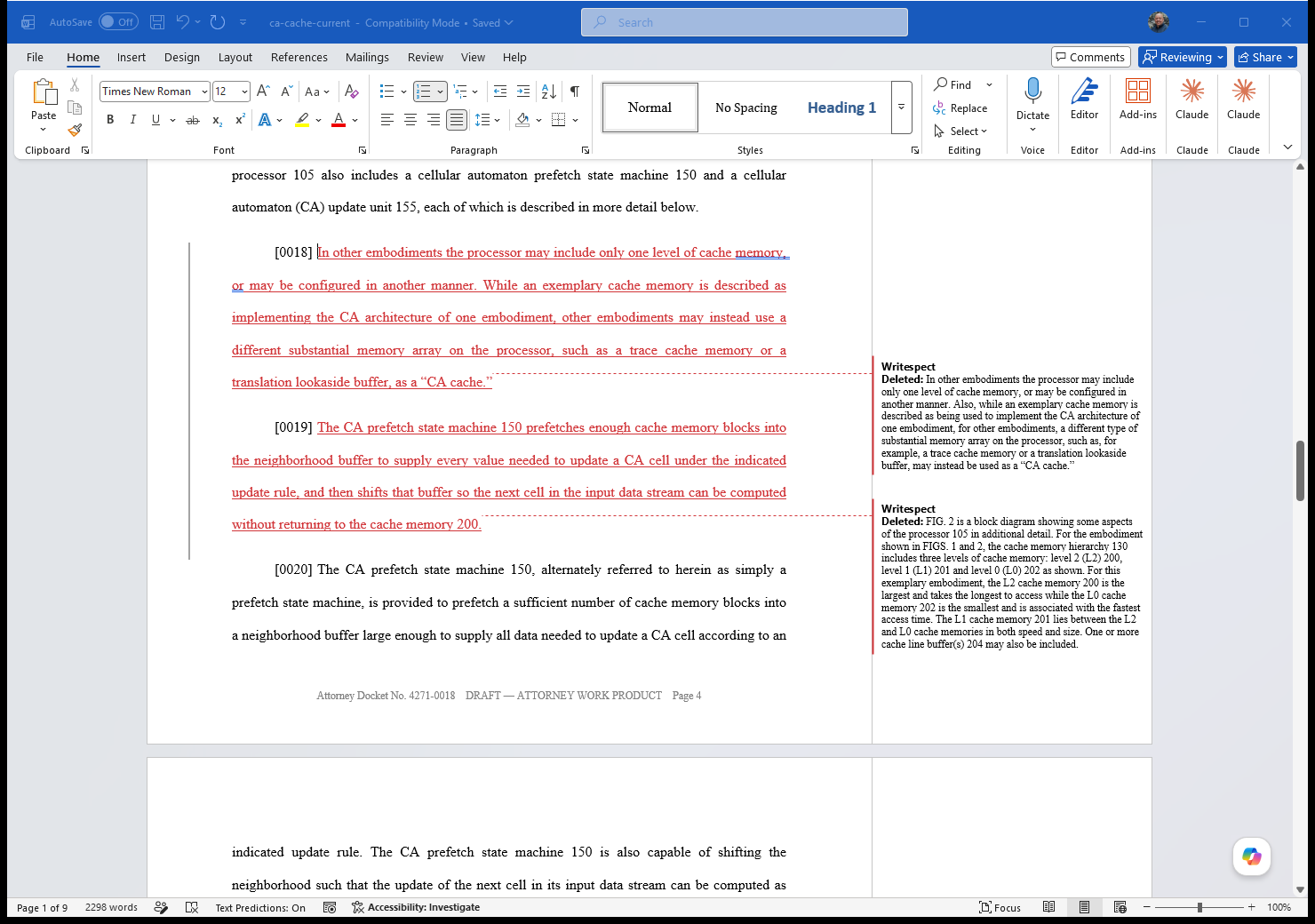
You: “Use the project notes and the reviewer’s comments to revise the introduction. Show the edits as tracked changes.”
Precise edits, not wholesale rewrites
Target a phrase, paragraph, or section while leaving the surrounding document alone. The result is a narrow, readable redline instead of an unnecessary rewrite.
- Target text by heading, phrase, or location
- Preserve untouched text and formatting
- Keep the resulting redline focused and reviewable
- Undo most instructions with one Word undo step
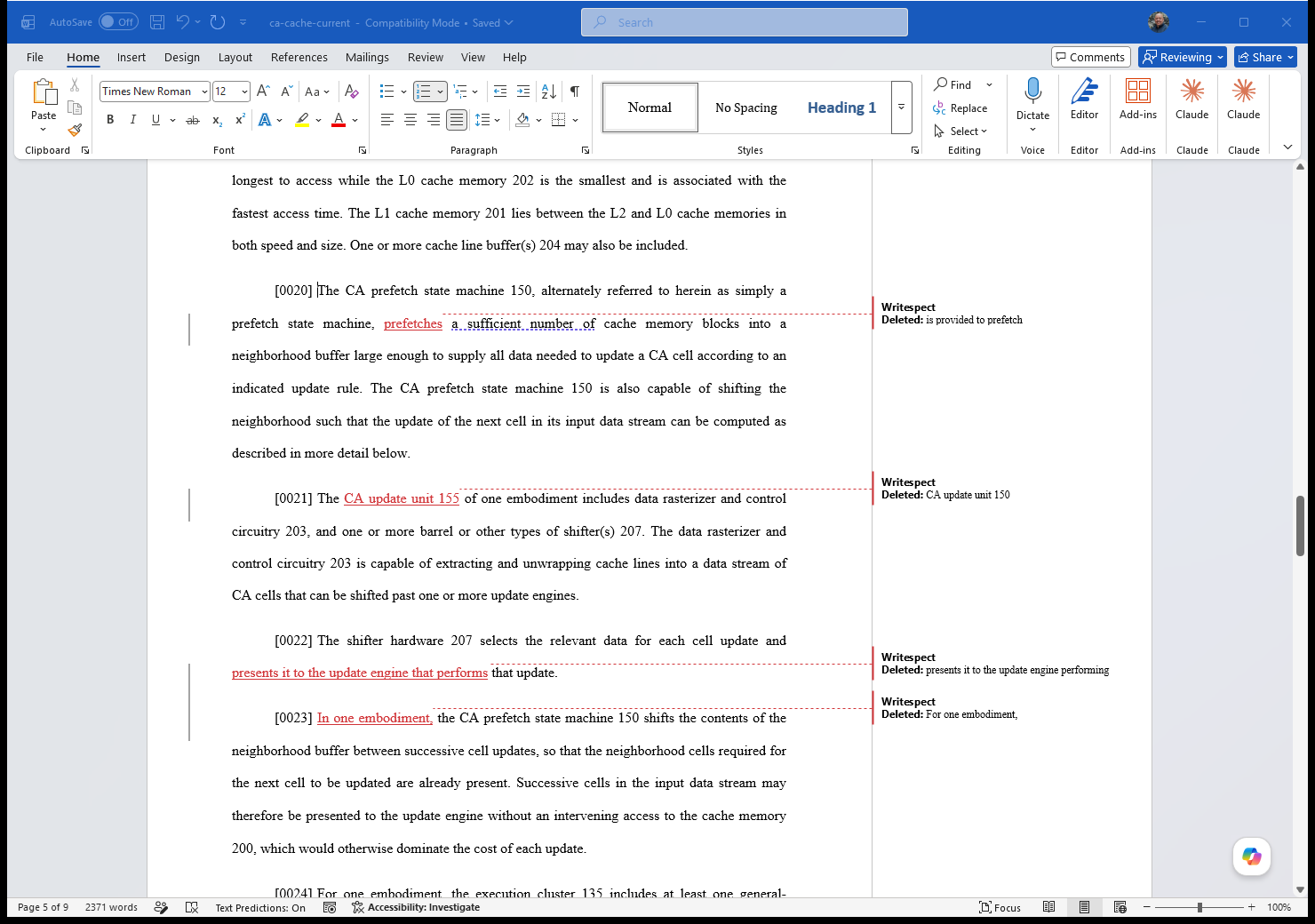
You: “Tighten this paragraph without rewriting the surrounding text.”
Compare versions with a real Word redline
Compare the document with an earlier draft using Word’s own comparison engine. The redline opens, reads, and shares like any other Word document.
- Compare current and earlier drafts
- Use Word’s native comparison engine
- See insertions and deletions in familiar review markup
- Share a normal Word document
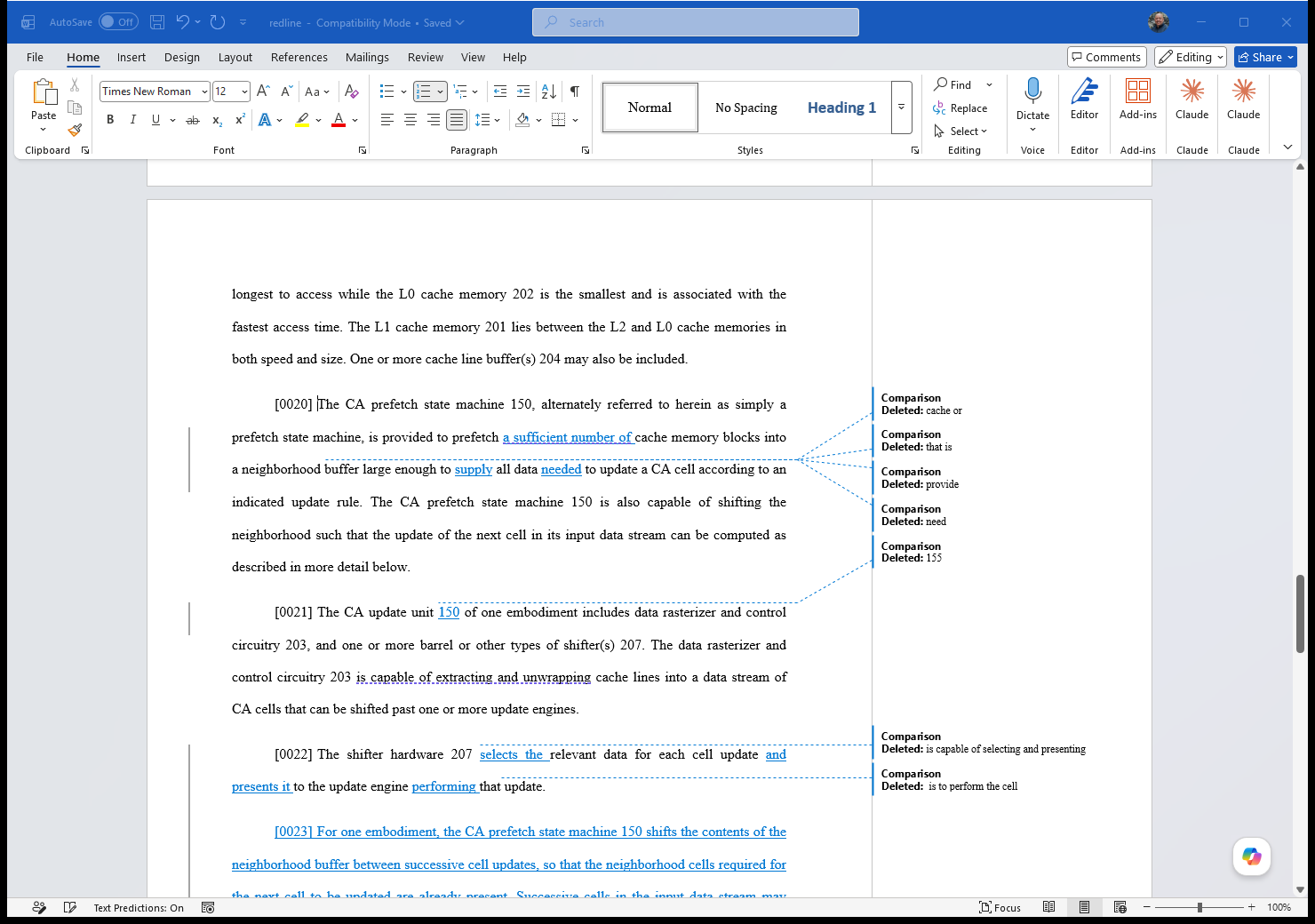
You: “Compare this draft with yesterday’s version and create a Word redline.”
Leave comments where judgment is needed
Ask your assistant to review the document and leave Word comments where something needs clarification, a decision, or another pass from the author.
- Add Word-native comments in context
- Flag gaps, inconsistencies, and open questions
- Keep decisions with the author or reviewer
- Continue the review inside Word
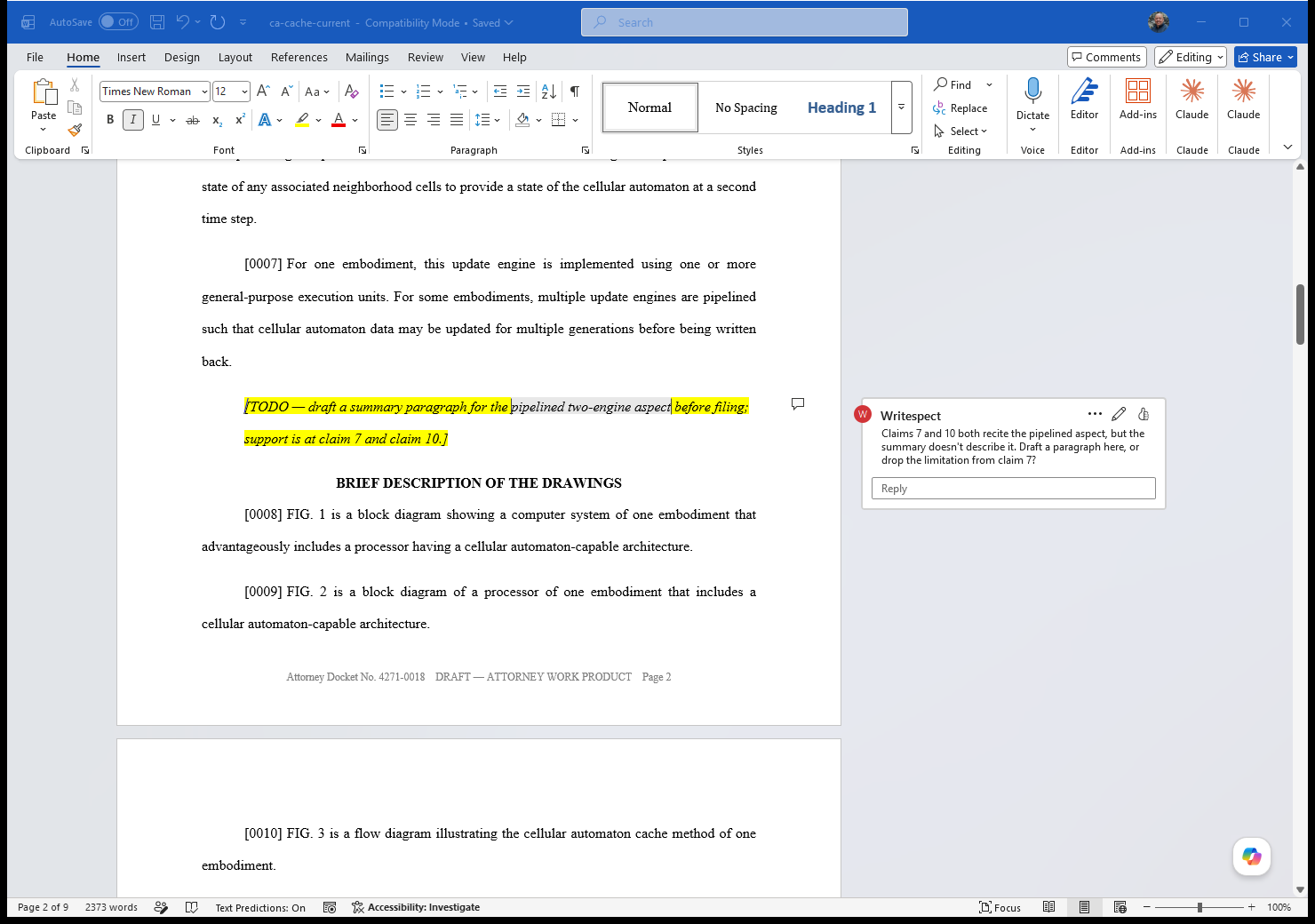
You: “Review this document and add comments wherever the author needs to make a decision.”
Built for documents that matter
Careful by default
A live document is not a scratch pad. Everything here exists because an edit in the wrong place costs you real time.
Context beyond the open document
Your assistant can use the files, instructions, and connected tools already available in its session, then put the result directly into Word. You do not have to reconstruct that context inside a document sidebar.
Word’s own redlines
Compare a draft against an earlier version and get a native Word redline, produced by Word’s own compare engine, in a format the other side, a partner, or an examiner can open and read directly.
It reads the numbers off the page
Say “clause 7.3” or “[0042]” and it knows which paragraph you mean, because it reads the number Word actually prints rather than an internal position that drifts away from it. You and your assistant refer to the same thing.
A snapshot before every change
Most edits land as a single entry on Word’s undo stack, so one Ctrl‑Z reverses one instruction. Writespect also saves a complete local snapshot before every change, so you can roll the document back even after an edit has been accepted, saved, or closed.
The whole document, not just the body
Create tables, edit their cells, and add or remove rows and columns. Work with footnotes, comments and replies, headers and footers, styles, page numbering, and PDF export without leaving the document workflow.
Runs entirely on your machine
The Writespect server runs on your PC with no cloud of its own: no telemetry, and nothing sent to us. When it uses a hosted model, the AI assistant you connect sends the document content it reads to its model provider under that provider’s privacy policy.
Set up once
From install to first edit
No API keys, no cloud account, and no rebuilding project context inside Word.
Install
One installer. Writespect™ registers itself with the AI assistants already on your machine, and lives quietly in your system tray.
Open your document
Work in Word exactly as you always do. Writespect attaches to the document you already have open, and it can also work with a saved .docx file that is not open in Word. It never asks you to import or upload anything.
Ask
Tell your assistant what you want changed and refer to the files or instructions it already has when needed. The edit lands in the document, ready for you to review.
Ready to draft faster?
Writespect™ is available now on the Microsoft Store.
For Windows 11 on x64 PCs. Requires Microsoft Word and a supported AI assistant.
* Writespect is an independent product from Hopeful and is not affiliated with, endorsed by, or sponsored by Microsoft. Microsoft, Visio, Windows, and Word are trademarks of the Microsoft group of companies.