Editing tasks and status
Click any task to open the detail panel. The panel lets you edit every task property.
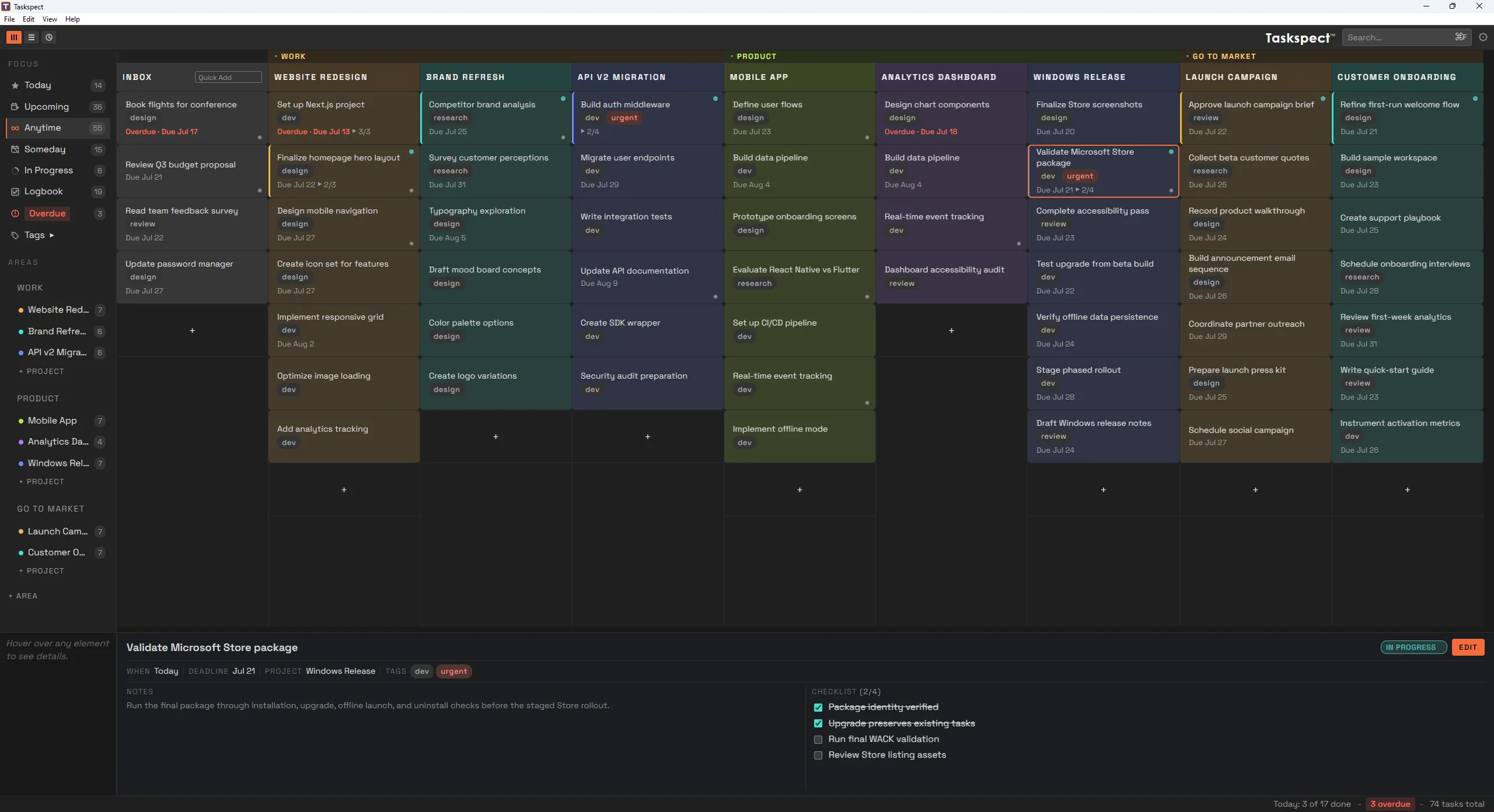
Taskspect for Windows showing a selected task with its properties, notes, and checklist in the detail panel.
- Title: Click to edit the task name.
- Status: Choose Open, In Progress, Paused, Completed, or Cancelled.
- When: Schedule the task for Today, another date, or Someday. A task appears in Today when its When date arrives and stays there until completed or rescheduled.
- Deadline: Set a due date. Tasks past their deadline appear in Overdue.
- Project: Reassign the task to another project.
- Tags: Add color-coded labels.
- Notes: Add freeform notes.
- Checklist: Add subtasks and track their completion.
Press Esc to close the panel. If changes are unsaved, Taskspect asks whether to save or discard them. Press Delete or Backspace to delete the selected task. You can undo the deletion with CtrlZ.
Task status
Every task has a status that tracks its progress:
- Open: The default state for a new task.
- In Progress: Work has started, shown with a colored dot.
- Paused: Work is temporarily on hold, shown with a pause icon.
- Completed: Work is done and moves to Logbook.
- Cancelled: Work was dropped and also moves to Logbook.
Changing status
You can change a task’s status in three ways:
- Detail panel: Open the task and select a status.
- Context menu: Right-click the task and choose Start, Pause, Resume, Complete, Cancel, or Reopen.
- Keyboard: With the task selected, press S to start, P to pause, C to complete, X to cancel, or O to reopen.
The context menu also lets you move a task to Today, remove it from Today, reassign it to a project, or delete it.
Undo: Most actions, including task deletion, can be undone with CtrlZ.