Task View
Task View presents your work as columns, one per project. Each task card shows its title, dates, tags, checklist progress, and status at a glance.
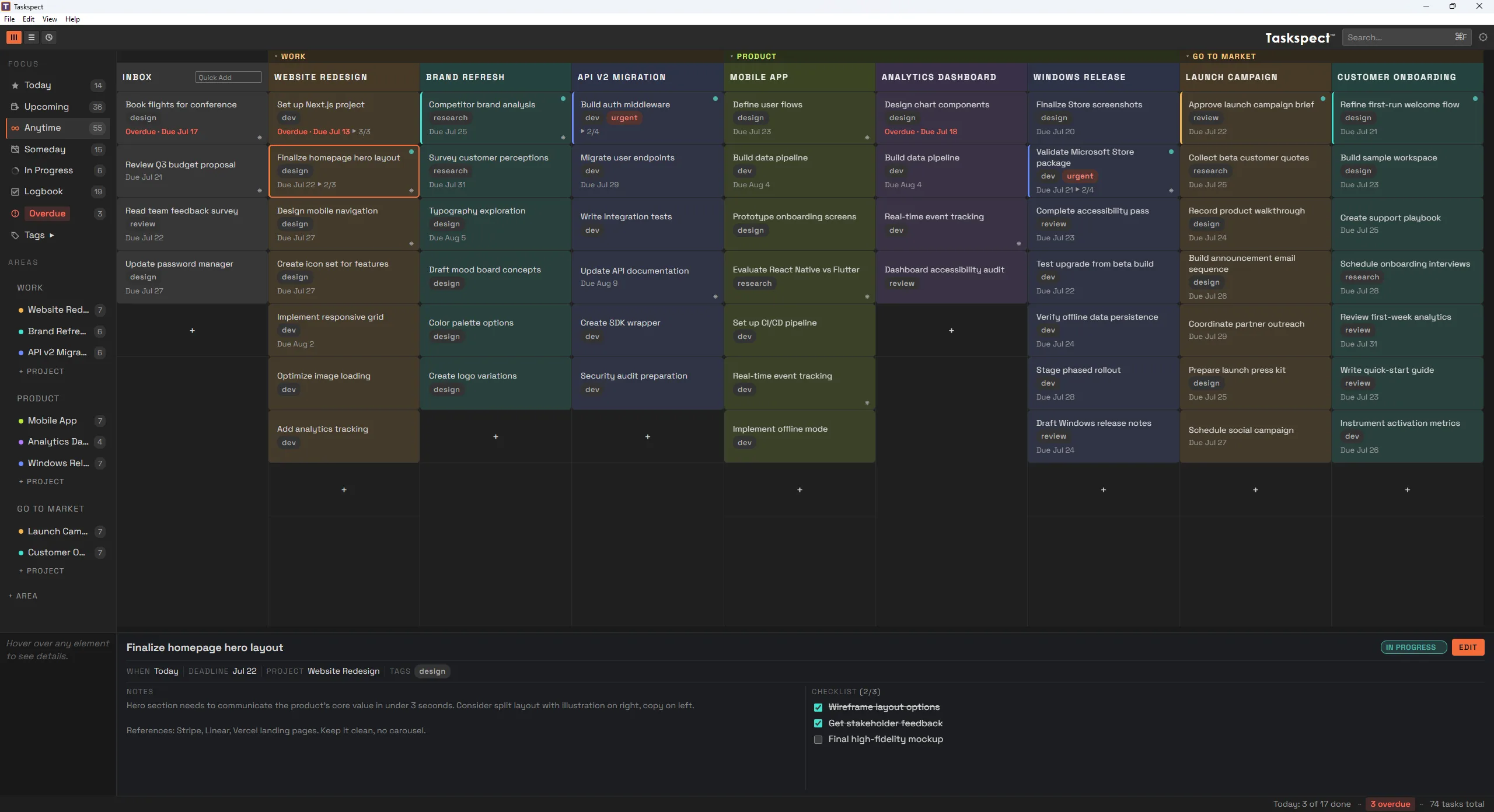
Task View on Windows with projects as columns and task cards showing metadata.
Working with task cards
- Click a task card to open the detail panel for editing.
- Drag a task card between columns to move it to another project.
- Right-click a task card for quick actions such as moving it to Today, changing its project, updating its status, or deleting it.
- Use ↑ and ↓ to navigate between tasks. Use ← and → to move between columns.
- Use Quick Add in the Inbox column header to capture a new task quickly.
- Click the checklist count on a card to expand its checklist.
Managing columns
- Drag column headers to reorder projects.
- Drag a column edge to resize it. Double-click the edge to reset its width.
- Toggle Inbox visibility with CtrlShiftI or View > Toggle Inbox.
- Use Settings > Task View > Hide Empty Columns to hide empty columns automatically.